

Prerequisites
You need:- An Enterprise organization. To enable SSO for your organization, contact help@abliteration.ai.
- The Owner or Admin role in that Abliteration organization.
- Access to your company’s DNS settings, or help from an IT administrator who manages them.
- Administrator access to your identity provider.
Set up SSO
1. Open Security settings
Sign in to Console as an organization Owner or Admin. Select your company organization and open Settings → Security. Find the Single sign-on section. If you see Contact sales or Contact support, select it to request access to SSO setup.2. Verify your company domain
Select Verify company domain and follow the setup wizard’s instructions to add a verification record with your DNS provider.3. Configure your identity provider
After verification, return to Settings → Security and select Set up SSO. To resume an unfinished setup, select Continue setup. Choose your identity provider and follow the instructions in the wizard:- Create an application in your identity provider using the configuration values shown in the wizard.
- Assign the users who need access, including the Owner or Admin completing setup.
- Complete the provider configuration in the wizard. Use each person’s existing Abliteration email address to preserve access to their account.
Google Workspace SSO requires this setup. Selecting Continue with Google on the sign-in page does not enable company SSO.
4. Test sign-in
Select Test sign-in in the wizard. Sign in as an assigned user and complete any verification required by your identity provider.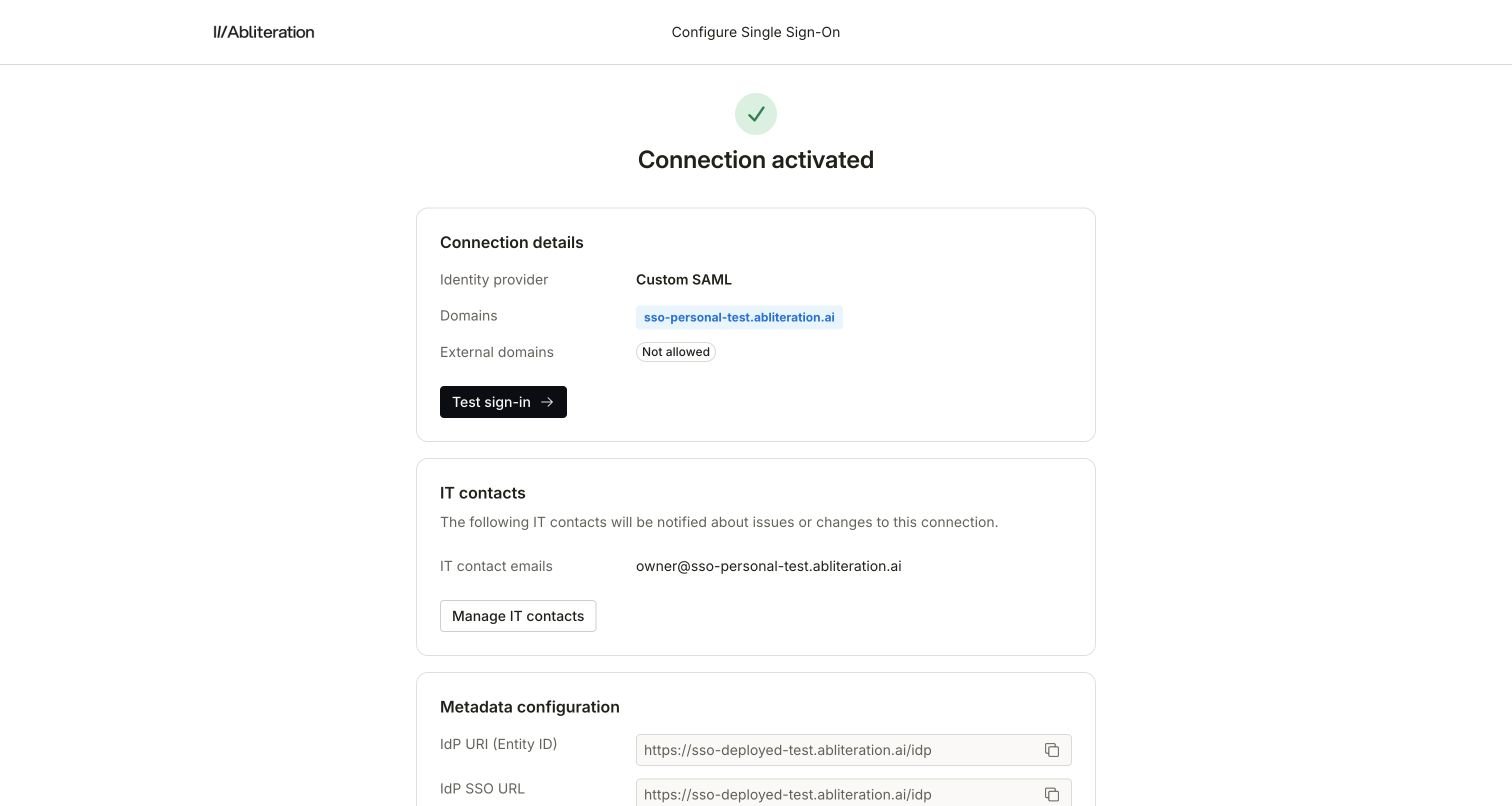
An example SAML connection after setup.
View or manage your configuration
Organization Owners and Admins can open Settings → Security → Manage SSO to review the connection, update its configuration, or manage IT contacts. Security settings show your company domains, sign-in policy, and default role for new employees. Your identity provider manages two-factor authentication for company SSO.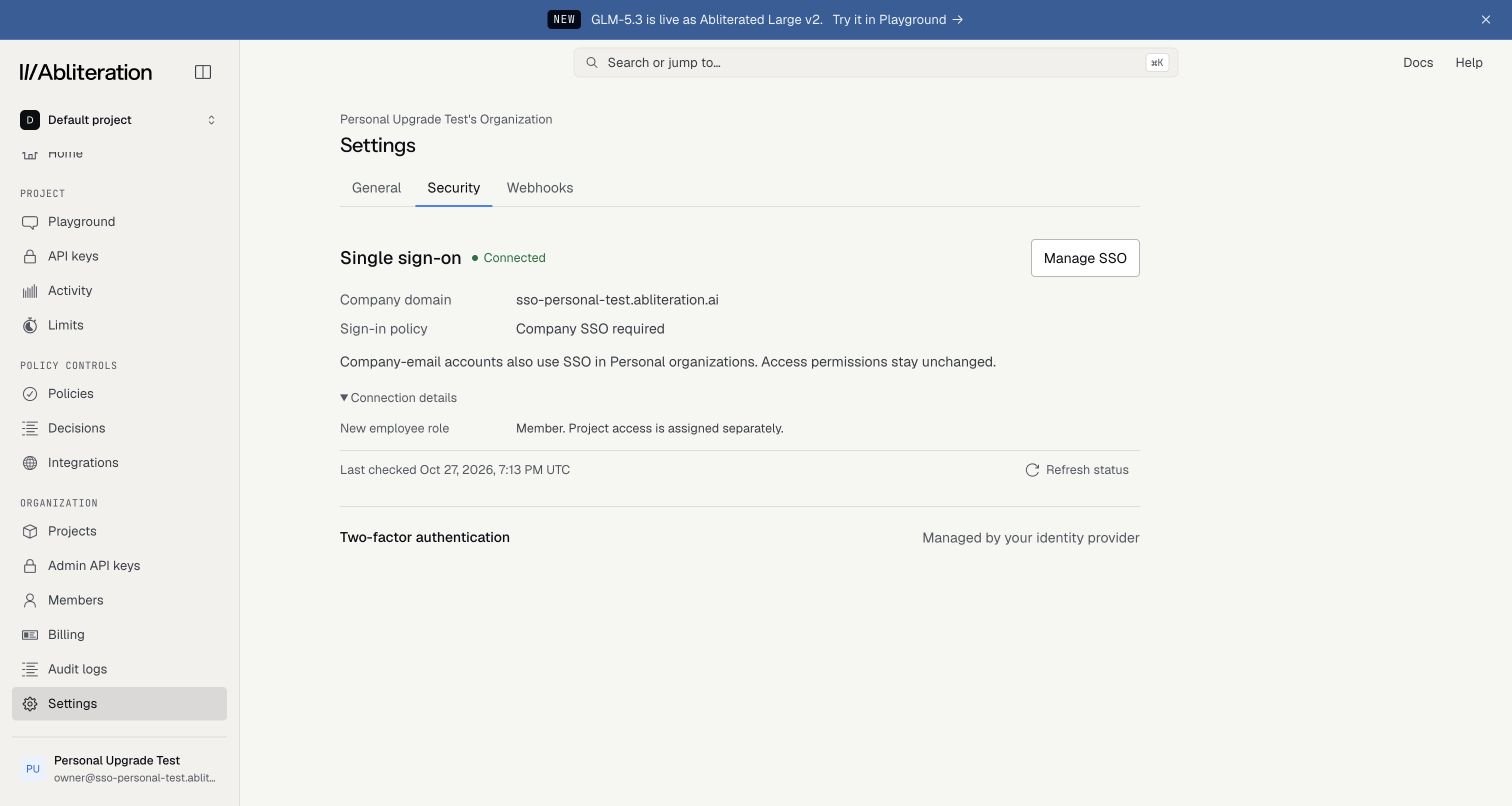
Security settings after SSO activation, with Connection details expanded.
Sign in with SSO
- Open the sign-in page.
- Enter your work email and select Continue. You can also select Sign in with SSO and enter your work email there.
- Authenticate with your company’s identity provider and complete its verification steps.
Sign-in and access
- Once your domain is verified and the connection is active, company SSO is required. There is no separate enforcement toggle.
- Existing members keep their accounts, organization roles, and project access. Enabling SSO does not transfer Personal projects to your organization.
- New employees on a verified company domain can join by signing in with SSO. They receive the Member role; an Owner or Admin assigns project access separately.
- External guests need an Abliteration invitation and access to your company’s identity-provider application.